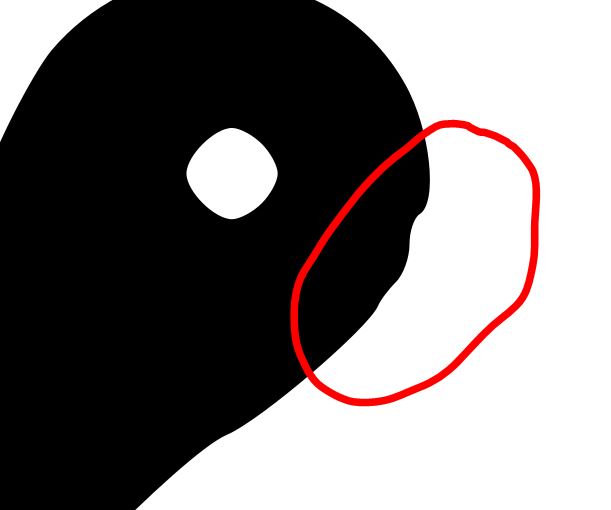
I would like to eliminate fringed sections on curves, to make the edge of the path a continuous curve where needed. I encircled the problem in the image attached. How can I do it effectively, if the path contains lots of these? Or if it is not possible precisely in bulk, addressing them one by one manually, what is the fastest way?
Hi I found this tutorial and this may be useful for you : https://www.youtube.com/watch?v=EFHLF1hcrjg and it is called as “How To Smooth An Already Drawn Path In Inkscape” and I hope it helps!
If you have a ton of those fringed sections (usually happens after using Trace Bitmap), doing it manually takes forever. The absolute fastest way is to just select the path and hit Ctrl + L (Simplify). It automatically removes the extra nodes and smooths out the jagged edges. If Ctrl + L distorts the shape too much, you can also just highlight that specific cluster of jagged nodes with the Node Tool (F2) and hit delete; Inkscape will naturally smooth the curve across the gap for you.
For manual cleanup, I usually switch to the Node tool (N), select the offending nodes, and use “Make selected nodes smooth” or “Make selected nodes symmetric.” That often removes those tiny kinks instantly without having to redraw the curve.
To do it poperly - adding/removing/playing with nodes is amateurish.
You should really recreate the shape, and if it’s too complex when zoomed out - there’s no reason you can’t draw a circle over the area and match the curves, then use the ‘Pathfinder’ or ‘Shape Buidler’ tools as they are called in Adobe.
Then you’ll have the perfectly smooth and aligned path without any issues.
Even if you draw the curve as a guide over the original image - then lock and fade it so you can use it as a template to draw exactly over it.
But don’t add/remove/push and pull nodes around without clearly defining how it should look.
For this, in illustrator, I’d redraw it, or add shapes around and use the shape builder tool to get it finely detailed correctly.
2 Likes