My computer updated to Tahoe 26.5 last night. I have a huge project I’ve been working on in InDesign. This morning, when I open InDesign, all of the images are garbled and InDesign is treating them like broken links even though the linked files have not moved or been modified. If I package the file for output, the summary box says 142 links are found, but when I click through to package the file, it won’t package due to problems with linked files. I ran this through ChatGPT. I’ve done everything it suggested (restarting, deleting preferences, turning off GPU performance, cycling display performance. Nothing is fixing it. Any last minute ideas before I spend an un-budgeted hour or two relinking all of those files? Not real happy right now.
Hmm. You shouldn’t have to spend that much time relinking the files.
I would duplicate your folder with all of your linked images and either rename it or place it somewhere different (such as your desktop). Then highlight all the missing links in InDesign Links palette and from the fly out menu select “relink to folder”, map to the duplicated folder and hit ok. It should relink everything.
From there you can always create a clean final packaged folder.
1 Like
From what’s happened on the forums recently
It’s more like Tahoe/InDesign losing permission to read the linked files, especially if they’re on an external drive, server, NAS, iCloud/OneDrive/Dropbox folder, or Desktop/Documents.
Before relinking manually, try:
Go to System Settings > Privacy & Security > Full Disk Access and add/enable Adobe InDesign.
Also check Privacy & Security > Files and Folders and allow access to Desktop, Documents, removable volumes, network volumes, etc.
Quit and reopen InDesign.
In Finder, open/Quick Look a few of the “missing” image files to confirm macOS can actually read them.
If the links are cloud-stored, force the whole linked-assets folder to download locally.
In InDesign, relink just one file, and in the relink dialog enable “Search For Missing Links In This Folder”. InDesign can often repair the rest automatically if the names/relative folder structure are intact.
There is also a reported Tahoe/InDesign packaging issue where links are present but packaging fails, particularly with server/NAS/external-volume workflows.
Adobe has a UserVoice bug marked under review.
2 Likes
This is one of those times being uptight is bitting me in the butt. I don’t have one folder with all of the links. I have a ton of different folders. For example, board photos, directory photos, logos, meetings, etc. Having multiple folders generally helps my brain, but it’s not helping right now. I suppose I could try copying all of the files to one folder as a fix. One of the issues, though, is that ID is not showing the links as broken or missing.
I think ChatGPT had me try that, but I will double check.
Thanks for the suggestions, guys. I’ll let you know what fix works.
We’ve had trouble with Tahoe and Dropbox recently. We have to sometimes open files using Finder so that it somehow updates the dropbox connection.
But where you have images that aren’t linking correctly, Finder won’t usually do the relink on opening an Indesign file.
Have you just tried resaving the file with a new filename?
Saving as an IDML sometimes works too but can break other things in the process.
I think it’s a permissions issue, with every new Mac Update or Adobe update the Mac has a spasm and has to recheck file permissions and full disk access.
*edit * I don’t have these issues so I’m just respouting what I know from the Adobe forums.
1 Like
From perspective and experience issues with files, follows the steps what experienced people here is telling you to do but one important thing about files, always make a backup of your files because you never know what is going to happen and having a copy of your files does not cost you a penny and having a backup then you have a copy and you are save from a disaster !
This fixed it. Thanks a ton!
Are there any privacy reasons to not give Adobe ID full disk access?
@CraigB Once I get past the current poop storm, I will try turning off disk access and give your folder suggestion a try.
@mluxgd I am not the sharpest tool in the shed, but, yes, I use Time Machine to constantly back up my hard drive.
2 Likes
Full Disk Access is an Apple/macOS permission rather than an Adobe one.
Major macOS updates (not dot updates) or reinstalls or say a new major release of InDesign - then this can cause macOS to request the permission again. If you trust Adobe, there are generally no Adobe-specific privacy issues beyond the normal lieks of granting Full Disk Access for any application.
I’ve been getting a flurry of pop-up messages asking whether I want to grant broad access (can’t remember the exact wording) to various applications. I’ve been routinely clicking the “no” button out of caution, but I had no clue what it was asking, who was asking, or why they were asking, since these pop-ups lacked any explanation. I suppose my having done so will come back to bite me.
My default reaction to any of those is “no.”
It’s been happening for a long time and people aren’t happy
https://www.reddit.com/r/MacOS/comments/1kgnvyo/is_anyone_else_sick_of_constantly_being_asked_for/
1 Like
Thank you. That was an enlightening read, as were the comments — especially the pop-up about random apps asking for permission to search the LAN for other devices. Why my calendar needs to find other devices on my network, I’m not quite sure, but I probably don’t need it crawling around my stuff.
As long as we’re on the subject of permissions and apps snooping where they shouldn’t, the other day I was online searching for trail running shoes. I narrowed down what I needed to four or five shoes, then decided to ask Google’s search AI what it thought of them.
It gave me some good advice, asked some good questions, and then recommended a specific pair that it said was available at REI (and an outdoor rec store) just two miles from where I lived.
I wasn’t happy that it knew my street address, but that’s not exactly private information that Google doesn’t already know, so I let it pass. I asked another question or two about the shoes, and it told me that my REI credit card had earned $XXX.XX in REI store credits that would more than cover the cost of the shoes.
I asked it how it knew how many credits I had at REI, and it responded that I had shared that information with it. I replied that I had never shared that information with it. It finally said it had obtained the information by scanning a different browser window I had open.
Snooping around on other open browser windows crossed a red line for me, so I told it so. It apologized (as they always do). I think I’ll switch to Firefox, which should leave Google’s snooping out of the loop.
Brave or DuckDuckGo are better than Firefox/Chrome for privacy.
There are a lot of Google settings you can tweak to reduce tracking. I still use Chrome because I don’t particularly care about it.
What amazes me is how often you can be talking about something completely random, like buying a tent or going camping, and suddenly ads for tents start appearing. Whether that’s your phone listening or just Google’s advertising systems being frighteningly good at predicting what you’re interested in, the end result feels much the same.
That’s essentially how much of the internet is funded. Browsers, apps, websites, and social media platforms are often free because advertising pays the bills, and the more data they have, the better they can target those ads.
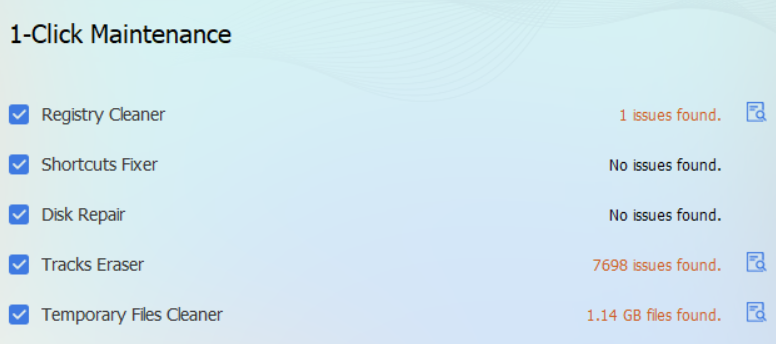
I have Glary Utilities on my PC that scrubs every day, tracking etc
I have Ad Blocker, and you can see the stats, I pop onto the family Facebook page and the ad counter jumps crazy.
Here’s Glary from today only
I have been happy using Duck Duck Go for my browser.