Hello GDFers,
This is my first post so go easy on me.
I have a logo that I designed a while back but I haven’t put it into use because I haven’t been able to figure out how to successfully export it as SVG. —(This is probably for another topic, but I tend to be a adamant about always designing production logo files that can be used as SVG/EPS vector assets.)
I’ve included a video that sort of explains my issue, but basically, my question is: Does anyone know of a way to create this same design but as a single shape with a gradient instead of using a masking shape on a gradient object? I think you’ll see what I’m talking about in the video, but I really don’t think Illustrator (and I tried it in Affinity too) are capable of applying linear gradients to shapes that have areas that overlap itself. Using the Freeform gradient doesn’t work is because Freeform gradients always seep through the entire object, even when a shape is designed to appear to overlap itself. In this example, the linear gradient (or gradient mesh) is essential to achieving the desired design. I’m stumped and kind of feel that it may be impossible.
The alternatives I’ve used are to export this as a raster file only, but I really don’t want to rely on raster production files. In advance, I greatly appreciate any help you can provide.
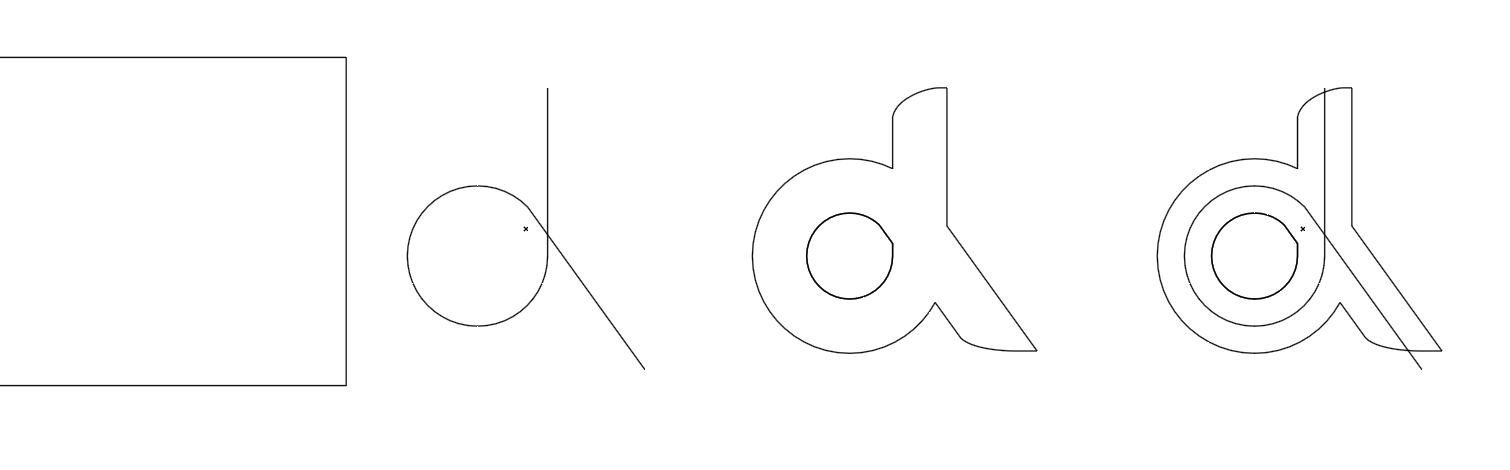
From Left to Right: Raster of your logo, quick redraw using a line and applying a gradient to the line in Illustrator, Taking the same line and outlining it and adjusting curved ends (I converted the line to a solid blue first to make it convert “properly”. I also expanded the outlined path to clean up any issues.) and then lastly I placed the outline (the blue) over the gradient line and masked it.
Ans this is the ugly quickly drawn file as an svg. (Ugh, I found Canva to be one of the easier ways to quickly show the SVG file.) Here it is with a black shape behind it to show it is transparent
@CraigB Thanks for the super quick response. Your technique is the same as the one that I used for the design that I did (shown in the video). The problem is that when I export the masked linear gradient stroke as an SVG, the gradient becomes rasterized, and aliased raster to boot. Maybe it’s because of my Illustrator export settings (but I don’t know how to change that)? Also, it appears that your version also has tiny missing chips in the gradient similar to the issues I get when exporting from Illustrator. It’s as if Illustrator is having a hard time resolving the complexity of a liner gradient that curves back on itself. Any ideas?
SVG only supports linear and radial fill gradients. The SVG 2.0 standard supports mesh gradients, which you might be able to coax into your logo shape, but I wouldn’t trust it for either consistent browser display or RIP output. Besides, I read somewhere that it’s being discontinued for future SVG versions, but I’m unsure about that. You might look into Inkscape (first time I’ve ever suggested that ) since it’s built around SVG.
I think you might be running into an SVG limitation, where the best solution is to skip the SVG in this instance and fall back instead on PNG and Ai files (if you can’t get Craig’s solution to work without rasterizing the vector information).
Echoing what @Just-B said, while I appreciate you wanting to keep it all vector, I think as long as you keep your source logo as vector and create a fairly high-resolution SVG file for web or online uses, you should be fine.
.eps is a dead format. I wish it would go away. It doesn’t support transparency, and wreaks all kinds of production havoc when working with a file that once contained transparency.
SVG is the least of your problems.
As a signmaker, this ‘logo’ gives me the shudders. Or visualized dollar signs.
If you want to assume it will only be rendered as a flat thing, it doesn’t really matter if it is raster or vector as long as there is enough resolution with a cut path AND BLEED provided should it ever need to be die-cut. You don’t want to know what the desktop charge is for dealing with that as a 3D element that actually loops. Even flat, the paint charge would be $$$$
Just wanted to drop a note to say thanks for all of the input here. It got me to craft a new version of the mark so that it can work as a simple 1 color shape.


 ) since it’s built around SVG.